

CAD-Earth is designed to easily import/export images, objects, terrain meshes, and 3D models between Google Earth ™, SketchUp ™, and Autodesk® AutoCAD®, and create dynamic contour lines and profiles.
You can pick CAD-Earth commands from a toolbar, the screen menu, or the command prompt. Each AutoCAD session automatically loads commands, and each step has extensive help.
What can I do with CAD-Earth?Process images up to 10x faster from different providers (Google, Google Earth, Bing, ESRI, Mapbox) in satellite, map, or hybrid image mode in normal, medium, high, or highest resolution.
Export terrain meshes from Google Earth to Autodesk® Civil 3D®. Now, you can export a CAD-Earth terrain mesh (imported from Google Earth) to a LandXML file, which Civil 3D and other software products can import to create surfaces.
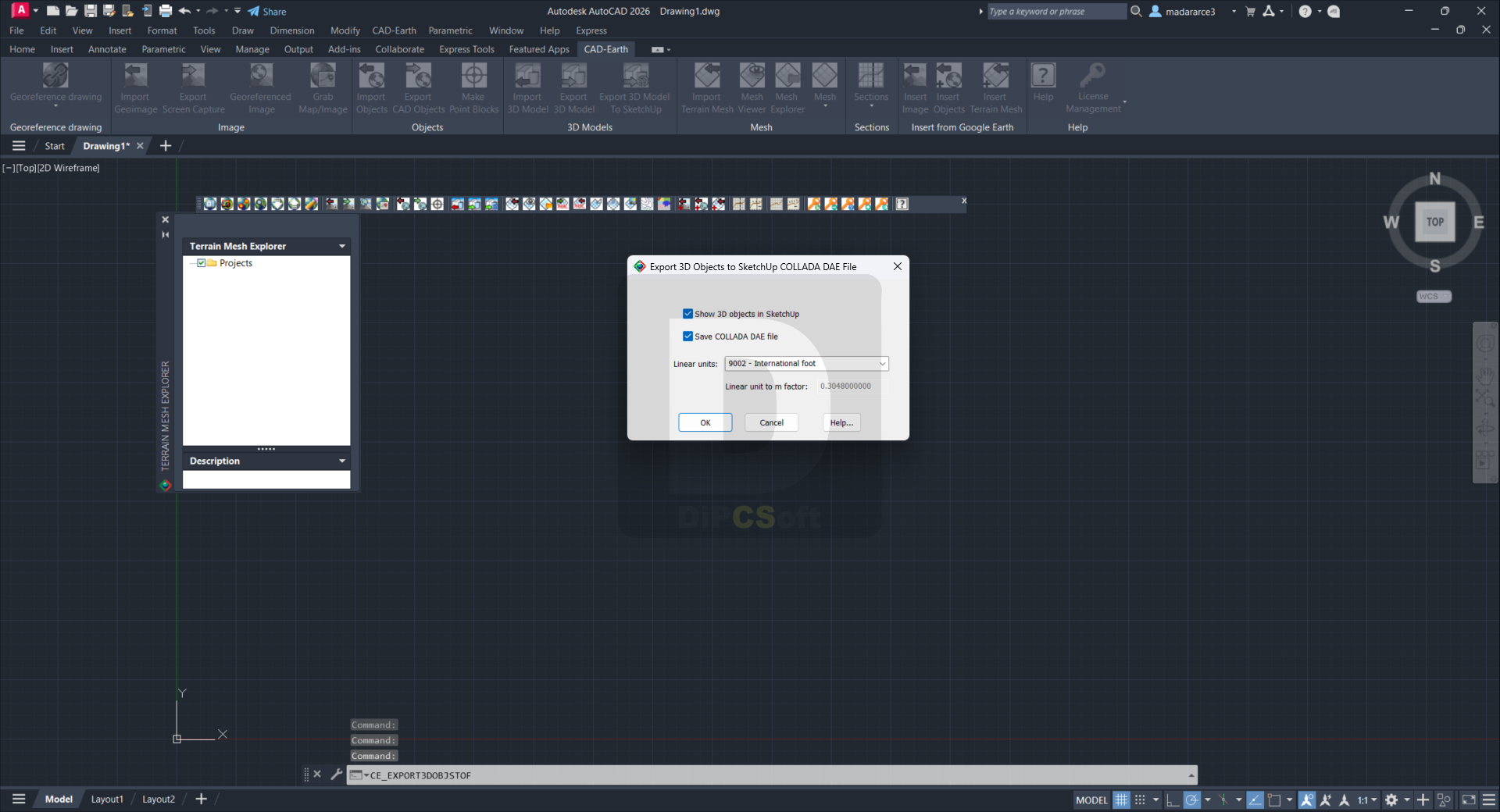
Export 3D solids, regions, meshes, or polymeshes to Google Earth.
Import terrain meshes from LiDAR and GeoTIFF files. You can select the area to process and set filter parameters.
Calculate cut/fill volumes between two terrain meshes and get a volume report in Excel.
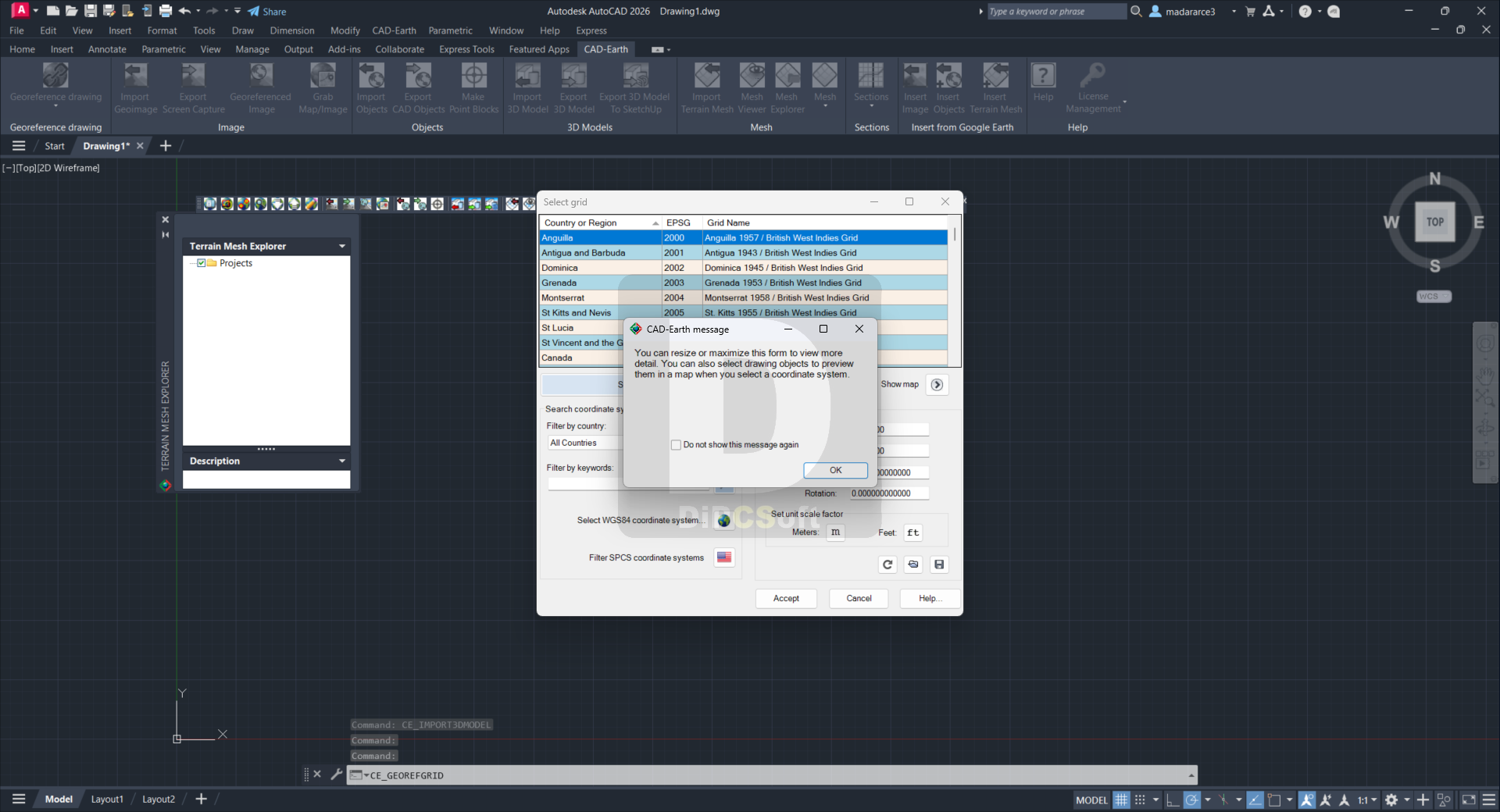
When selecting a coordinate system to georeference a drawing, preview the position of selected drawing entities in a map. Drawing entities can be moved, scaled, or rotated in the map until they match the site.
A new map control lets you preview drawing entities in the real world. You can move, scale, and rotate reference entities in real time until they match the exact location.
Use new commands to georeference a drawing. Locate entities in a map, select two points, and type their latitude/longitude coordinates to avoid misplaced images or objects.
The command to import terrain mesh from Google Earth has been significantly optimized for speed and performance.
Import Google Earth™ image to CAD Export CAD screenshot to Google Earth™.
Import Google Earth™ objects to CAD. Insert georeferenced images. If you have image files with the corresponding world file containing spatial data information, you can automatically place them in the drawing by applying XY scale and translation transformations.
Export CAD objects to Google Earth™
Import Google Earth™ terrain.
Cross-section from mesh Profile.
More than 3000 supported coordinate systems worldwide Free 30-day trial is available.
What’s new in CAD-Earth Premium?Instantly get cut-fill volume calculations, comparing with another mesh inside a region defined by selecting points on the mesh or selecting an existing closed polyline in the drawing. You can preview the cut and fill areas with color and transparency and insert a summary cut-fill volume table in the drawing, along with the plan view image of the area analyzed.
View the surface by elevation or slope ranges, defining colors and minimum-maximum values for each range, and insert a summary table in the drawing with the corresponding plan view image.
Display instant contour lines, defining the contour line color, gap, and base elevation.
Create animation videos, define camera positions, and view directions, speed, and pause time. The resulting file can be opened in any MP4-compatible player, such as the Windows Media Player.
Measure distance, slope, and angles directly on the mesh, along any XYZ axis, and planes.
Open the Mesh Cross Section Viewer to inspect an orthographic view of a mesh cross-section.
Take a screenshot of the current view and save it to an image file or insert it in the current drawing as a raster image reference.
Import surface from a LandXML file, from other software applications that can save surface information in this file format, such as Civil 3D. The imported mesh is 100% compatible with CAD-Earth commands.
Link an existing image in the drawing to a terrain mesh. If you open the mesh in the Mesh Viewer, the image will be projected on the mesh instead of being visualized in a solid color. Once you link an image to a terrain mesh, if you move, rotate, or scale the mesh, the image will be updated accordingly.
Create a mesh by selecting existing 3D faces in the drawing. This command converts meshes from previous CAD-Earth versions to the new format.
Compatible with
AutoCAD 2021, 2022, 2023, 2024, 2025, 2026, 2027
AutoCAD Map 3D 2021, 2022, 2023, 2024, 2025, 2026, 2027
Civil 3D 2021, 2022, 2023, 2024, 2025, 2026, 2027
AutoCAD Electrical 2021, 2022, 2023, 2024, 2025, 2026, 2027
AutoCAD MEP 2021, 2022, 2023, 2024, 2025, 2026, 2027
AutoCAD Plant 3D 2021, 2022, 2023, 2024, 2025, 2026, 2027
AutoCAD Mechanical 2021, 2022, 2023, 2024, 2025, 2026, 2027
AutoCAD Architecture 2021, 2022, 2023, 2024, 2025, 2026, 2027
Screenshots
Downloads